Sbooky: Book Highlighter
Logogram LC.

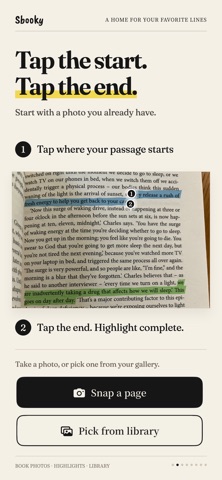
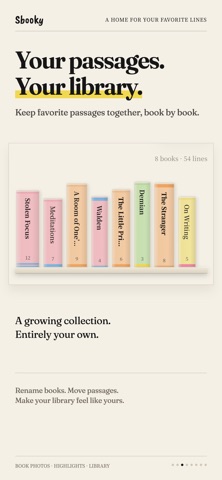
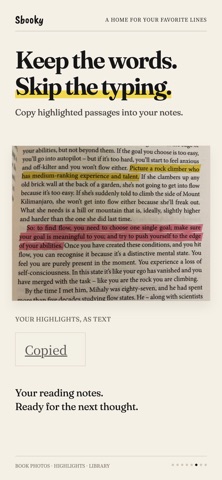
Highlight book passages in photos and collect them in your own Library. Snap a page, then tap the first and last letter of a passage. Add a textured highlight, save it by book, and copy the words or share the page to Instagram Stories. For library books, borrowed books, and books you'd rather keep unmarked. Keep the words that stay with you, without leaving a mark on the page. ◆ Highlight with two taps · Tap the first and last letter to select a passage. · Choose a highlighter, underline, or pencil, each with its own texture. · Make it yours with five soft colors. · Straighten tilted page photos and crop to the part you want. ◆ Build a Library from your reading · Keep your saved passages organized by book. · Watch each book's spine grow thicker as you collect more passages. · Fill your shelf with colorful spines and subtle paper textures. · Rename books or move passages between them. · Add page numbers so you can find your way back. ◆ Rediscover a favorite · A saved passage greets you on the app's home screen each day. · Tap to revisit the original page photo. · Remember the words—and what made you stop to keep them. ◆ Copy and share · Copy highlighted passages as text into Notes, Notion, or your reading journal. · Share directly to Instagram Stories, with the feel of the printed page intact. · Save to Photos to use wherever you like. · Prefer to keep it private? Saving to your Library is enough. ◆ A quiet place for your words · No account, no login, no ads. · Your passages and photos are stored on your device. Only anonymous usage statistics are collected. · Start free with up to 3 books in your Library. · Unlock unlimited books with a one-time purchase. No subscription. Return the book. Keep the words. Start with one passage you love.
Screenshots