Scan to Spreadsheet
Berry Wing LLC

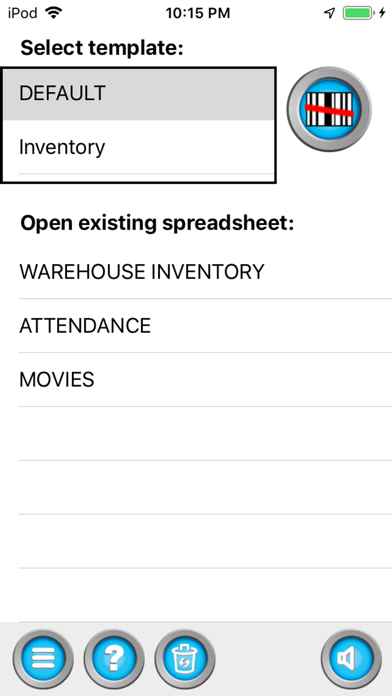
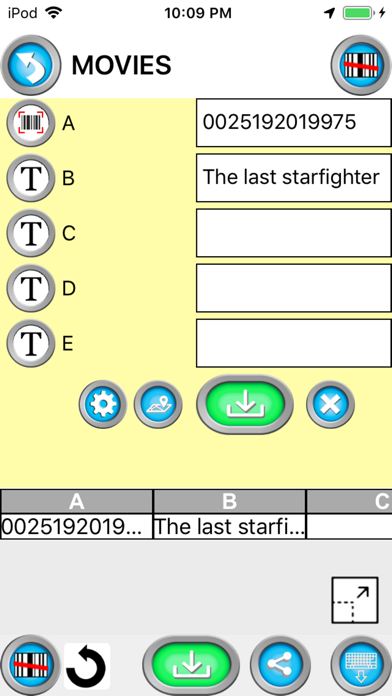
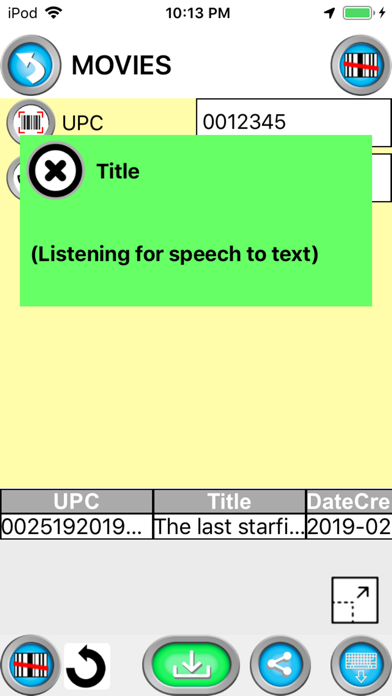
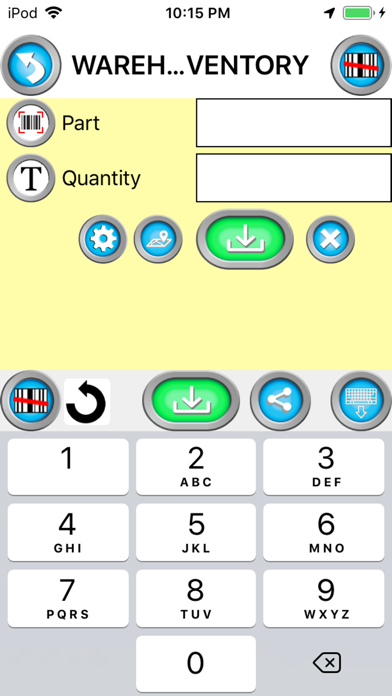
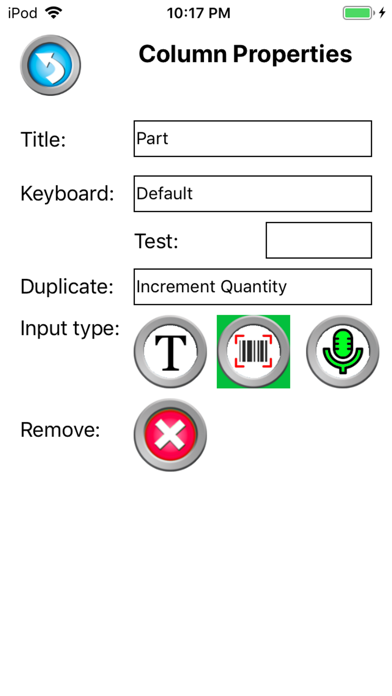
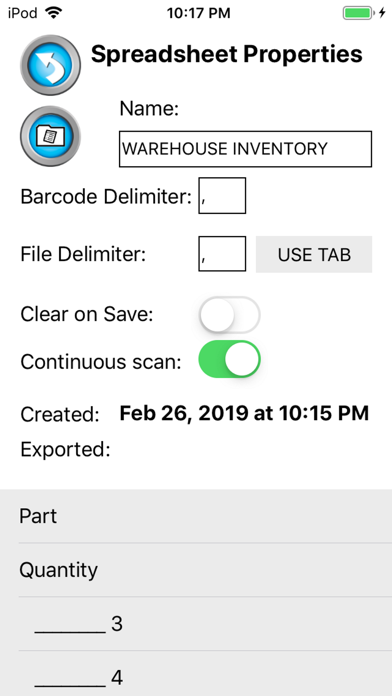
Spreadsheet barcode scanning. 1. Scan. 2. Email. 3. Inventory, Attendance, or any Spreadsheet Done! Create spreadsheets using the barcode scanner in your iPhone. Use this for inventory, cycle count, marketing event scanning, attendance, or other times where scanning to make a list is needed. A great option for bring your own device (BYOD) barcode scanning and/or inventory. Email CSV or MS Excel XML formats from your phone, iPad, or iPod. Share to Google Drive and open with Google Sheets Use templates to customize column names for each spreadsheet column. Records GPS coordinates of each scan. Separates the barcode into different columns using the Parse / Delimiter feature. For example, create a barcode with information separated by a comma. When scanned, the information will go do different columns; like First Name, Last Name and Email. The date and time is recorded for each scan. Use our new validation feature to catch duplicate scan, limit scans to only values in a lookup table, or fill the spreadsheet with information from the lookup table when a matching scan is found. Barcode symbology supported; - QR Code - Data Matrix - EAN / UPC - PDF417 (drivers license) - Code 3 of 9 (*10 to 15 characters max) - Code 128 (*20 characters max) From our users; I use the app for logging runner's times in long distance running. I record a start row, then scan each runner in when they cross the finish line and I have an instant time tally sheet. We use Scan to Spreadsheet to log when students turn in homework assignments. Now we can quickly see who has not turned in and head off any problems that could affect their grades. Our asset inventory is so easy now that we use Scan to Spreadsheet. Great Job!!!
Screenshots