TimeLab - Video Rendering
MobilePhoton

2.2 stars503 reviews100,000+Free
PhotographyEveryoneVersion 2.70Updated 6/13/2026, 2:53:04 PM
Open in StoreTimeLab is an app for capturing time-lapse video, it also supports video rendering from a series of images for users to create high quality time-lapses.
The features include
1. Capture time-lapse with user-configurable settings including time interval, number of images, video resolution, frame rate, and video bitrate.
2. Capture time-lapse with motion blur effect to eliminate jittery effect and provide sense of motion in time-lapse
3. Hyperlapse with motion blur effect.
4. Converts series of images from internal storage into a video with configurable video resolution, fps, and quality.
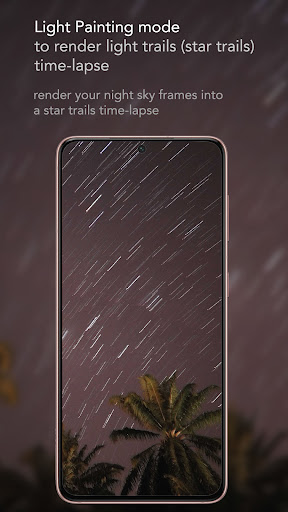
5. Processes series of images into final image using image stacking to create light painting effect (bulb mode effect) (premium).
6. Photo editor to allow users to edit image frames before rendering into final video
The flexibility in processing images from internal images allows users to create high quality time-lapses/images including
- long exposure timelapse
- hyperlapse
- cinematic timelapse
- light trail timelapse
- night sky/ Milky way/ Star trails timelapse
- ultra wide angle timelapse
*Premium features:
- motion blur time-lapse
- remove ads
- up to 4K resolution
- up to 100mbps bitrate
- up to 60 fps
- full editing features including brightness, contrast, shadow, highlight, temperature and saturation
- able to import more than 100 images and up to 15,000 images to render video
- light painting mode to render light painting time-lapse
The features include
1. Capture time-lapse with user-configurable settings including time interval, number of images, video resolution, frame rate, and video bitrate.
2. Capture time-lapse with motion blur effect to eliminate jittery effect and provide sense of motion in time-lapse
3. Hyperlapse with motion blur effect.
4. Converts series of images from internal storage into a video with configurable video resolution, fps, and quality.
5. Processes series of images into final image using image stacking to create light painting effect (bulb mode effect) (premium).
6. Photo editor to allow users to edit image frames before rendering into final video
The flexibility in processing images from internal images allows users to create high quality time-lapses/images including
- long exposure timelapse
- hyperlapse
- cinematic timelapse
- light trail timelapse
- night sky/ Milky way/ Star trails timelapse
- ultra wide angle timelapse
*Premium features:
- motion blur time-lapse
- remove ads
- up to 4K resolution
- up to 100mbps bitrate
- up to 60 fps
- full editing features including brightness, contrast, shadow, highlight, temperature and saturation
- able to import more than 100 images and up to 15,000 images to render video
- light painting mode to render light painting time-lapse
Developer email
mobilephoton17@gmail.com
Developer website
https://www.mobilephoton.comReleased
May 17, 2019
Current version
2.70
Android version
9
Reviews & Ratings
2.2
out of 5
5
4
3
2
1
🚫 Very low user satisfaction
503 reviewsScreenshots