Papercopy: Trace & Draw
Durica Micunovic

4.5 stars7,466 reviews1,000,000+Free
Art & DesignEveryoneVersion 3.2.2Updated 10/7/2026, 11:56:33 PM
Open in StoreTurn your phone into a tracing lightbox. Open any image, lock the screen, put paper on top, and draw.
Papercopy makes it easy to copy a picture from your screen to paper with a pencil or pen. No printer, no lightbox, no special tools — just your phone or tablet and a sheet of paper.
HOW IT WORKS
1. Pick an image from your gallery, camera, or the built-in Explore library
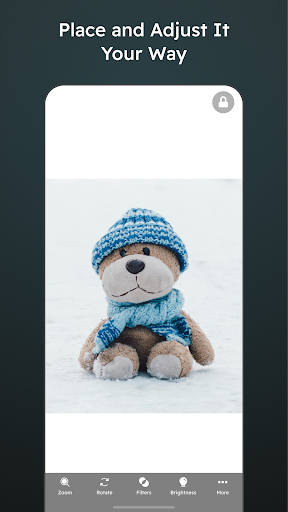
2. Zoom, rotate, and move it until it sits exactly where you want
3. Lock the canvas so the screen doesn't shift while you draw
4. Place your paper over the display and trace the lines through it
FEATURES
- Lock screen – blocks touches so the image stays put under the paper
- Precise zoom, rotate and pan – size the image to fit your paper
- Brightness and contrast controls – makes lines visible through thicker paper
- AI trace-ready images – describe what you want and get a clean outline to trace
- Explore – hundreds of ready-made drawings, animals, characters, patterns and lettering
- Works on phones and tablets
WHO USES PAPERCOPY
- Kids learning to draw and parents who want an easy, screen-light activity
- Artists and illustrators transferring sketches, references and outlines
- Hand-lettering, calligraphy and tattoo stencils
- Teachers, crafters, embroidery, woodworking and cake decorating templates
- Anyone who wants to copy a photo, logo or drawing to paper quickly
Tracing is one of the oldest ways to learn to draw — it trains your hand and eye before you draw freehand. Papercopy just removes the friction.
Have a suggestion or a problem? Email us from the app and we'll reply.
Papercopy makes it easy to copy a picture from your screen to paper with a pencil or pen. No printer, no lightbox, no special tools — just your phone or tablet and a sheet of paper.
HOW IT WORKS
1. Pick an image from your gallery, camera, or the built-in Explore library
2. Zoom, rotate, and move it until it sits exactly where you want
3. Lock the canvas so the screen doesn't shift while you draw
4. Place your paper over the display and trace the lines through it
FEATURES
- Lock screen – blocks touches so the image stays put under the paper
- Precise zoom, rotate and pan – size the image to fit your paper
- Brightness and contrast controls – makes lines visible through thicker paper
- AI trace-ready images – describe what you want and get a clean outline to trace
- Explore – hundreds of ready-made drawings, animals, characters, patterns and lettering
- Works on phones and tablets
WHO USES PAPERCOPY
- Kids learning to draw and parents who want an easy, screen-light activity
- Artists and illustrators transferring sketches, references and outlines
- Hand-lettering, calligraphy and tattoo stencils
- Teachers, crafters, embroidery, woodworking and cake decorating templates
- Anyone who wants to copy a photo, logo or drawing to paper quickly
Tracing is one of the oldest ways to learn to draw — it trains your hand and eye before you draw freehand. Papercopy just removes the friction.
Have a suggestion or a problem? Email us from the app and we'll reply.
Developer email
mmicunovic1@gmail.com
Developer website
http://mmicunovic.comReleased
Apr 1, 2017
Current version
3.2.2
Android version
7.0
Reviews & Ratings
4.5
out of 5
5
4
3
2
1
😊 Highly rated by users
7,466 reviewsScreenshots