Sunsynk Connect
Sunsynk

3.1 stars790 reviews100,000+Free
House & HomeEveryoneVersion 1.17.13Updated 4/28/2026, 11:18:14 AM
Open in StoreSunsynk Connect App has been developed to help you get the most out of your Sunsynk inverter.
It has been specially tailored for the customers and installers.
Using the Sunsynk Connect app with your Sunsynk inverter gives you complete remote control of your system from anywhere in the world!
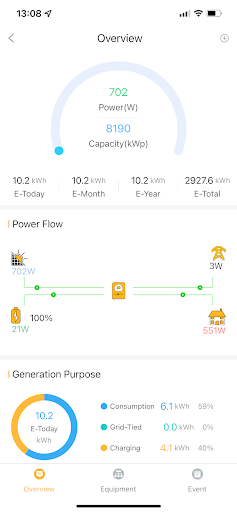
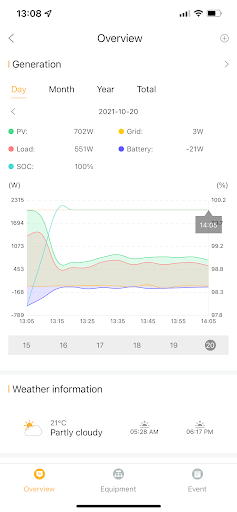
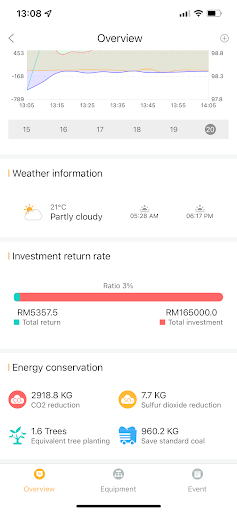
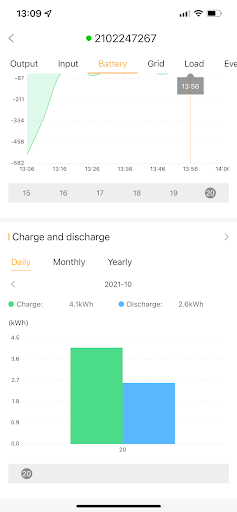
Real-time Monitoring – The Sunsynk Connect App lets you monitor multiple stats such as energy generation, battery status, grid, and load statistics.
Change Settings Remotely - You can control all settings on the inverter from your mobile phone or PC without having to visit the inverter in person.
Sharing Plant Connection - Customers can share their connection with their installer, permanently or temporarily.
If they need help with any settings or configuration on their system, or if the installer needs to run any diagnostic checks, there is no need to visit site. The customer can share their plant connection and the installer can run any diagnostics / make any configuration changes from their own account.
Octopus Agile Intergration - UK users can use the Live Price feature, using this you can look at the live prices provided by Octopus Energy and amend your charge and discharge prices with those figures in mind.
Reporting – Users can generate detailed reports and export them to a PDF file. You can generate reports an that day, week, month, and year, or you can create custom reports.
Events / Alerts – The Sunsynk Connect app will notify you if there are any events such as any warnings or faults or if there is any sudden loss in power.
It has been specially tailored for the customers and installers.
Using the Sunsynk Connect app with your Sunsynk inverter gives you complete remote control of your system from anywhere in the world!
Real-time Monitoring – The Sunsynk Connect App lets you monitor multiple stats such as energy generation, battery status, grid, and load statistics.
Change Settings Remotely - You can control all settings on the inverter from your mobile phone or PC without having to visit the inverter in person.
Sharing Plant Connection - Customers can share their connection with their installer, permanently or temporarily.
If they need help with any settings or configuration on their system, or if the installer needs to run any diagnostic checks, there is no need to visit site. The customer can share their plant connection and the installer can run any diagnostics / make any configuration changes from their own account.
Octopus Agile Intergration - UK users can use the Live Price feature, using this you can look at the live prices provided by Octopus Energy and amend your charge and discharge prices with those figures in mind.
Reporting – Users can generate detailed reports and export them to a PDF file. You can generate reports an that day, week, month, and year, or you can create custom reports.
Events / Alerts – The Sunsynk Connect app will notify you if there are any events such as any warnings or faults or if there is any sudden loss in power.
Developer email
support@sunsynk.com
Developer website
https://www.sunsynk.orgReleased
Oct 22, 2021
Current version
1.17.13
Android version
5.0
Reviews & Ratings
3.1
out of 5
5
4
3
2
1
😕 Lower user ratings overall
790 reviewsScreenshots